

Ambire and Hardware Wallets: How to Sign Transactions Securely
Your hardware wallet keeps your keys offline, but it only protects you if you check what you sign. Here's how to match every transaction in Ambire against your device, from clear signing to hash checks and Safe multisig.


Using a hardware wallet with Ambire adds an extra layer of security when holding and managing your crypto. Your keys stay offline on a device hackers can't reach, and Ambire, in combo with the hardware wallet, shows you exactly what you're about to sign.
Here's the part most guides skip: a hardware wallet can only protect you if you can read what you’re about to sign on the hardware wallet screen and match the data with Ambire.
In this guide, we'll walk through why hardware wallets exist and show how to check a transaction in Ambire and on your hardware device before you sign it.
TL;DR:
- Your hardware wallet keeps your keys offline. Its screen is an offline check on what you sign.
- Read the transaction in Ambire first: network, what you give and get, which app you're interacting with, and the fee.
- Then compare it on your hardware device. If your device supports clear signing and shows a breakdown of the transaction, match the details. If it only shows a hash, match the hash.
- Does everything match? Sign. Something is off? Don't.
Why hardware wallets exist
Let’s start with the basics. A hardware wallet does two jobs, and both are equally important:
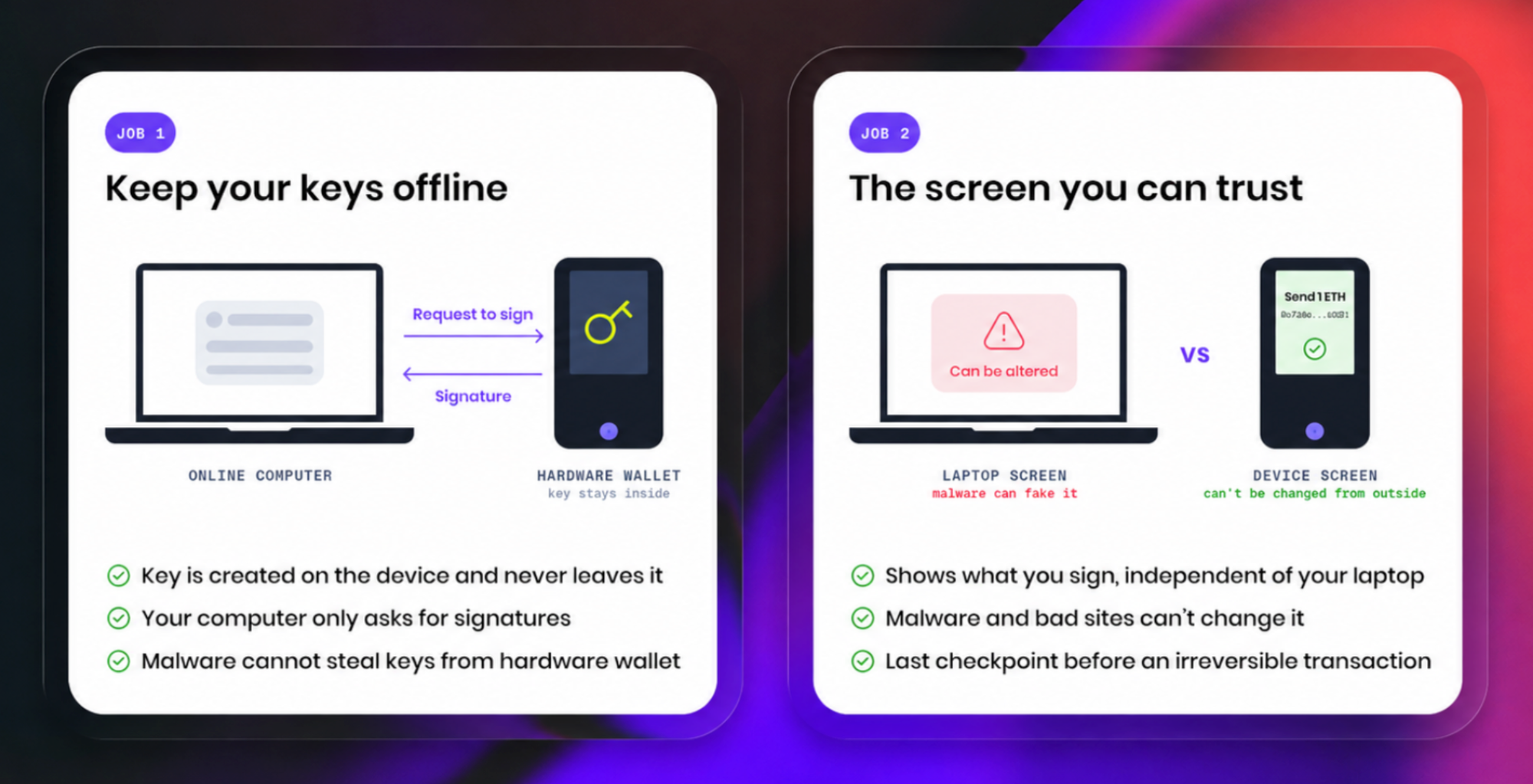
Job 1: Keep your keys safe offline
Your private key is the only thing that can move your funds. On a regular browser wallet, that key is stored and encrypted on a computer that's online, runs dozens of apps, and opens hundreds of websites. That represents the surface for malware and phishing.
A hardware wallet keeps the key in a dedicated device. The key is generated inside the device, and it never leaves it. Your laptop or phone only ever sends the hardware device a request to sign, and the device sends back a signature. Even if your computer is fully compromised, the attacker can't get keys from your hardware device.
Job 2: The screen you can trust
This is the part that often gets forgotten. Your hardware wallet has its own screen and its own buttons for a reason: it shows you what you’re about to sign, independently of your laptop or mobile app.
Hardware wallets with no screen are not as safe to use since you cannot independently verify transaction content in your software and hardware wallet.
Your laptop screen can be changed by malware, a compromised website, or a poisoned app update. e.g., your hardware wallet's screen can't be changed from the outside. That makes it an offline verifier and the last checkpoint between you and an irreversible transaction.
In 2025, hackers stole $1.5 billion from Bybit without ever touching their keys. They tricked the website, so it showed a normal transfer, while the hardware wallets were asked to sign something else. This article will help you avoid exactly that.
We recommend that you check our explainer video on how hardware wallets work:
Step 1: Request and read the transaction in Ambire
Ambire works with Ledger, Trezor, GridPlus, Keystone, Keycard, imToken, and other QR-based wallets, on the extension and on the mobile app.
Let's use an example of swapping 1 ETH into WALLET on Ethereum, routed through DefiLlamaSwap.
When you hit swap, Ambire decodes the transaction and shows you what it will do in plain words:
- Check the network: We requested a transaction on Ethereum, and you should see the Ethereum network in Ambire.
- Which app you're interacting with: The icon belongs to DeFiLlamaSwap.
- What you give and get: Swap 1 ETH for at least 158,000 WALLET.
- Transaction simulation: Ambire previews what happens with your token balances before you sign.
- Check fee: Network fee: up to 0.000025 ETH. Ambire will warn you if the network fee increases significantly during signing.
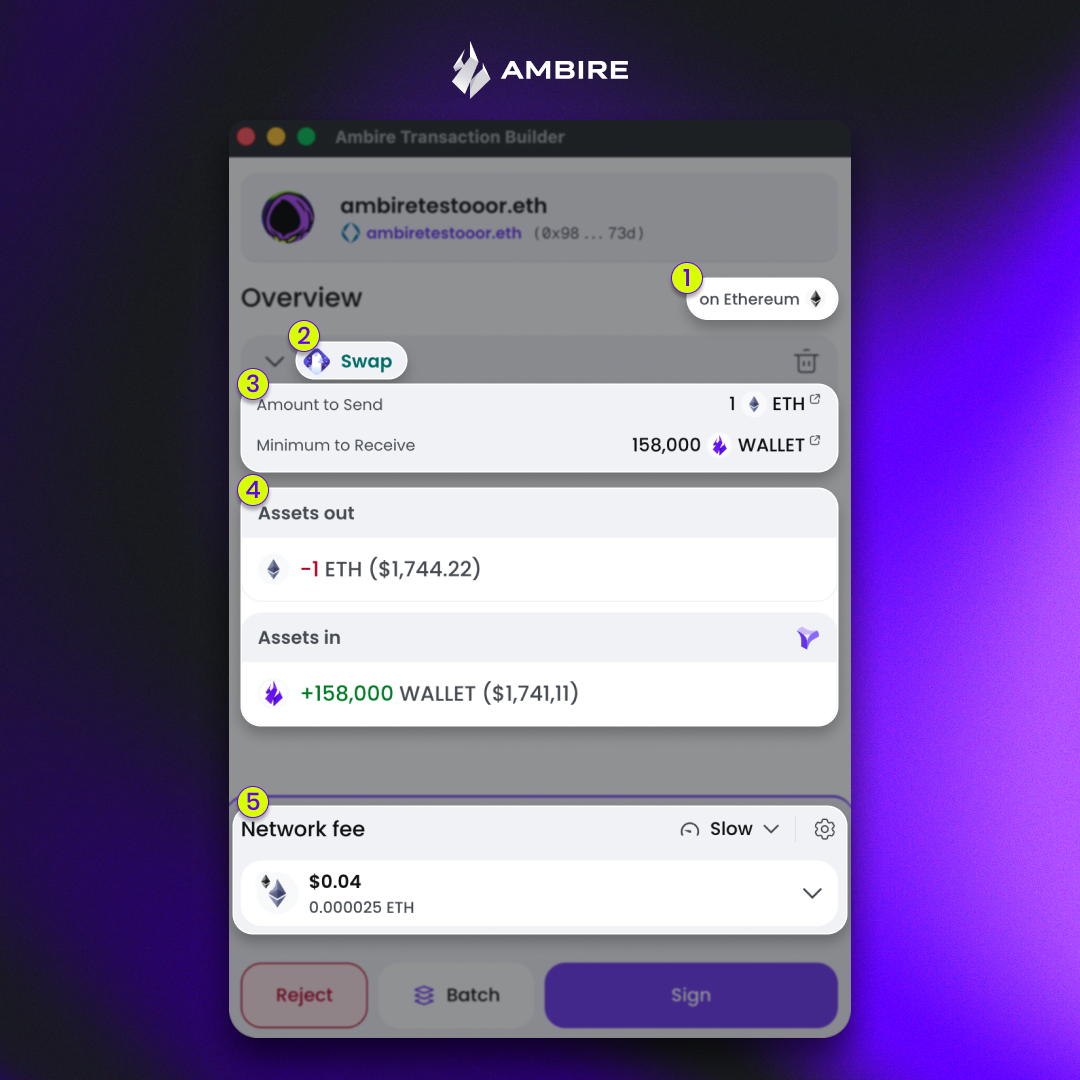
Ambire does the quiet work in the background: it simulates the transaction, decodes it, checks the app against its scam and phishing blocklist, and warns you about suspicious tokens or addresses.
Step 2: Compare the details on your hardware wallet
Now look at your hardware device. You'll see one of two scenarios described below:
A: Your device supports clear signing (ERC-7730)
Clear signing means your hardware device can read the transaction and show it in simple words. It works through ERC-7730, a standard where apps publish how their transactions should be displayed. Wallets and hardware devices that support it turn raw data into:
- Network: Ethereum
- Send 1 ETH
- Receive min. 158,000 WALLET
- To: LI.FI
- Max fees: 0.0004 ETH
What to do: follow the steps on your hardware wallet and match each one in Ambire. Same network, same amounts, same app, same fee. No hash needed.
Watch an example of clear signing while signing a supply transaction on Aave using a Trezor hardware wallet in Ambire:
You used to approve transactions you couldn’t read and hope for the best.
— ambire.eth (@ambire) October 23, 2026
Not anymore. Ambire and @Trezor now show exactly what you’re signing, like this @aave supply.
Blind signing out. Clear signing in. pic.twitter.com/41fCANiSY4
B: Your device shows a hash
Sometimes your device can't read the transaction. Maybe the app hasn't published an ERC-7730 description yet, or the interaction is too complex for the device. You'll see a blind signing warning and a hash like this:
0x849d ad86 47f2 02e0 228b dcfa 2918 628c cc02 bf94 eef4 9153 0142 61ba c76e 7729
That's the transaction hash, a fingerprint of exactly what your hardware device is about to sign. Change a single character in the transaction, and the transaction changes completely.
What to do: in Ambire, tap “Show verification details” and match the hash EXACTLY. If every character matches, your hardware device is signing exactly the transaction Ambire showed you. If even one character is different, reject.
Watch an example of swapping ETH to WALLET in Ambire while using Ledger that shows a hash:
always verify transactions on your software & hardware wallet before signing: https://t.co/CUjzyTylFf pic.twitter.com/dK4O3B3abe
— cinesius.eth (@cinesiusss) November 23, 2026
That’s it, now you know how to sign transactions securely using the Ambire extension or mobile with hardware wallets.
Signing with a Safe account
If you sign for a Safe multisig, your device signs a message rather than a transaction. When it can't show the details, it shows two hashes instead: the domain hash and the message hash.
In Ambire's “Show verification details, you'll find:
- Domain hash and Message hash: match both with your device.
- Safe transaction hash: the one to compare with your co-signers or the Safe app. Ambire checks that the domain and message hashes add up to it, and tells you if they don't: "These hashes don't add up. Don't approve on your device."
- Checks you can confirm just by reading the request, like "operation 0: a normal call" and "No gas refund".
Final thoughts
You can think of a hardware wallet as a pair of eyes that can't be fooled by your computer.
So make it a habit: read it in Ambire, read it on your device, and sign only if they match. It takes ten seconds, and it's the ten seconds that matter most.
We're pushing this further with Ambire Ice, our open-source hardware wallet built for Safe. It decodes Safe transactions right on its own screen, warns about owner and threshold changes, and blocks unknown delegate calls (the same mistake that caused the Bybit hack). The second batch pre-orders are open, with shipping expected in early 2027.
Got questions? Ask the team on Discord or Telegram, or check the Help Center. Want to level up your OPSEC? Our security guide covers the rest.
Stay safe out there. Your future self will thank you.
Interested in Ambire? Follow us:
Discord | X (Twitter) | Reddit | GitHub | Telegram | Facebook
